Canceling or upgrading your own LinkedIn premium subscription is pretty straightforward, but what about when you need to cancel someone else’s premium subscription?
LinkedIn subscriptions are personal. Often, companies pay to upgrade an account to a premium subscription (and it’s pretty expensive, ~$80 a month per employee). Once an employee leaves, did you ever wonder how a business can cancel that former employee’s subscription?
Hint: it’s not plain sailing.
If you think about it, that former employee is probably pretty psyched to have a LinkedIn premium account at no cost to them. They may not be in a rush to let their former company know that they should be downgraded to a regular LinkedIn account. On the company’s side, there is no easy way of matching charges with individual accounts, due to LinkedIn’s “privacy” rules, meaning companies continue being charged for the subscription and are unable to directly cancel the payment themselves.
Oh - and blocking the card won’t work either, as LinkedIn is allowed to shift the payment to another card issued to the same account owner, without you even noticing. Convenient!
Truth be told, it’s one of the most painful unsubscribes out there.


How to Cancel Someone’s LinkedIn Premium Account**
Most of the time businesses just aren’t aware of all the hassle, and what’s worse is that the procedure to cancel someone else’s LinkedIn premium account tends to be quite complicated.
In order to cancel someone else's account, be prepared to have all your payment, card and transaction information on hand.
Warning: it’s a long and tedious process.
But it’s possible - and we’re going to show you how with a step-by-step guide on how to cancel a team member’s LinkedIn Premium subscription:
1. Head to LinkedIn Help
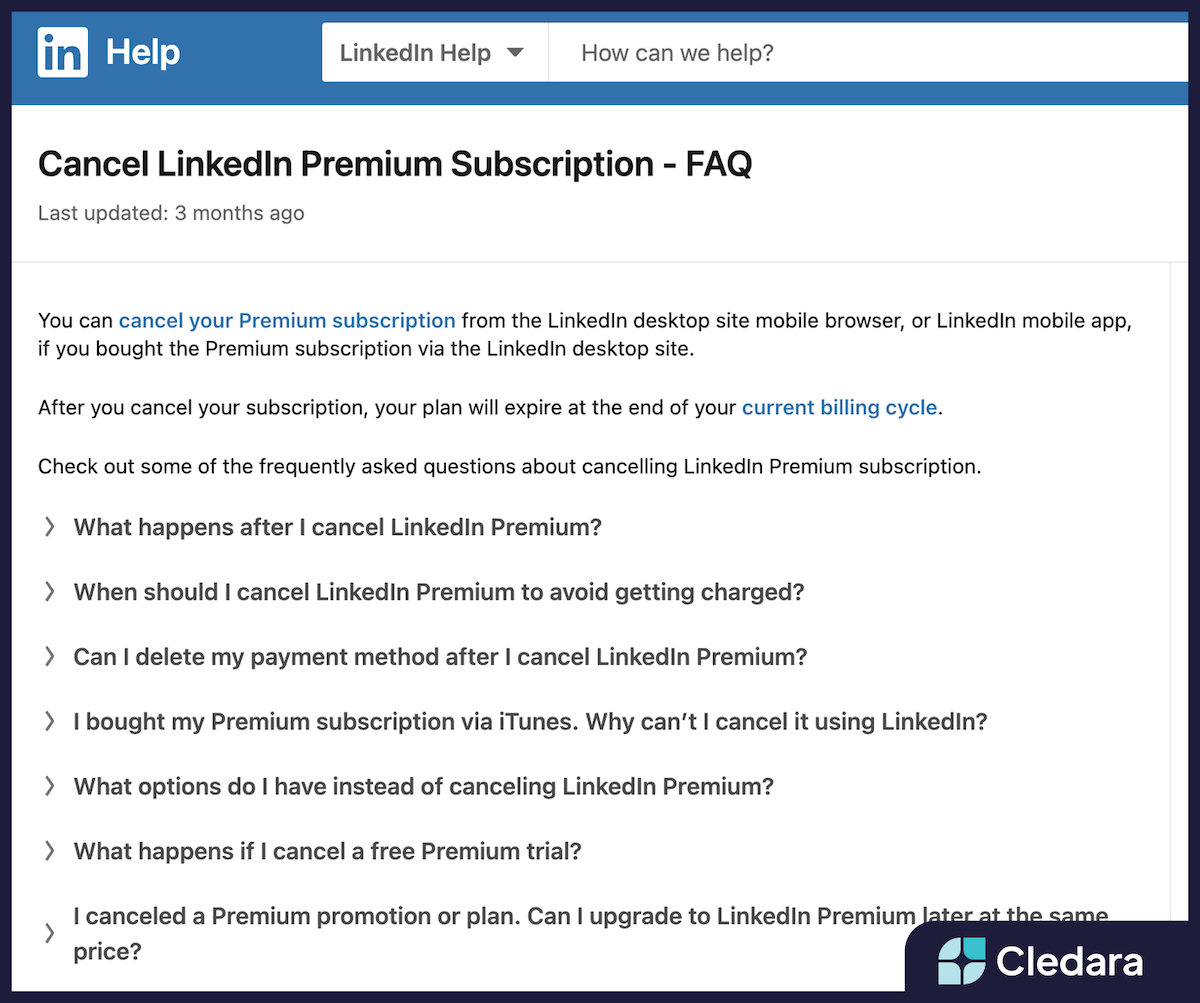
First, head to LinkedIn shortcuts and click on Cancel LinkedIn Premium Subscription
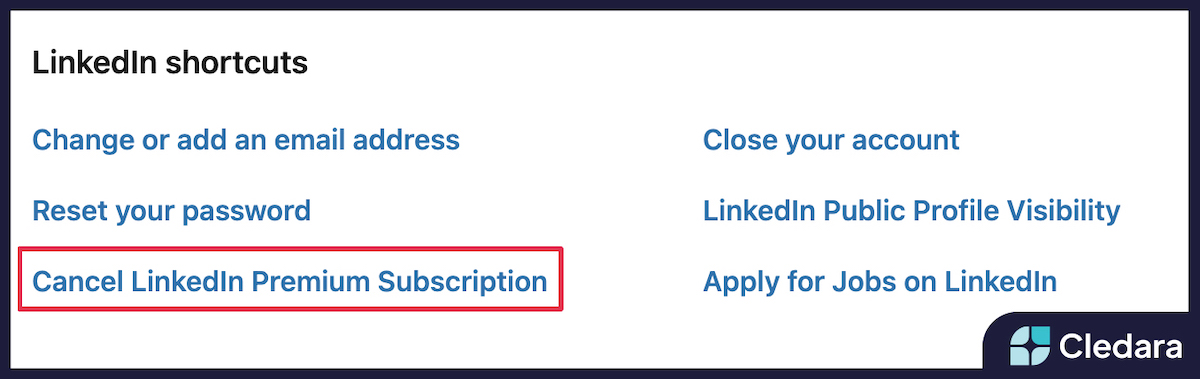
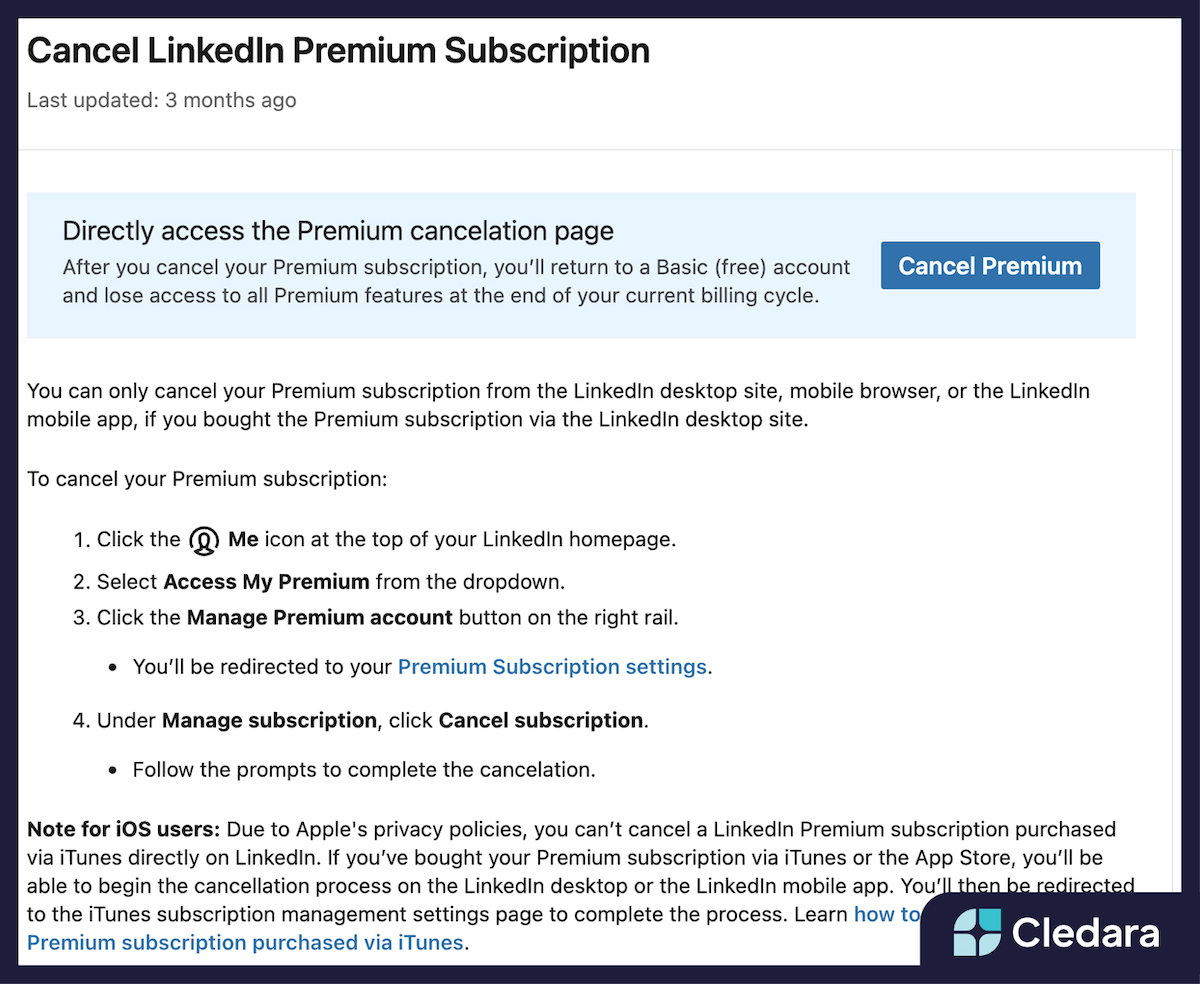
2. From there, you’ll be redirected to a LinkedIn article on how to cancel a Linkedin Premium subscription
Although this page tells you how to cancel your own LinkedIn Premium subscription, there is no information on how to cancel someone else’s Linkedin Premium subscription.
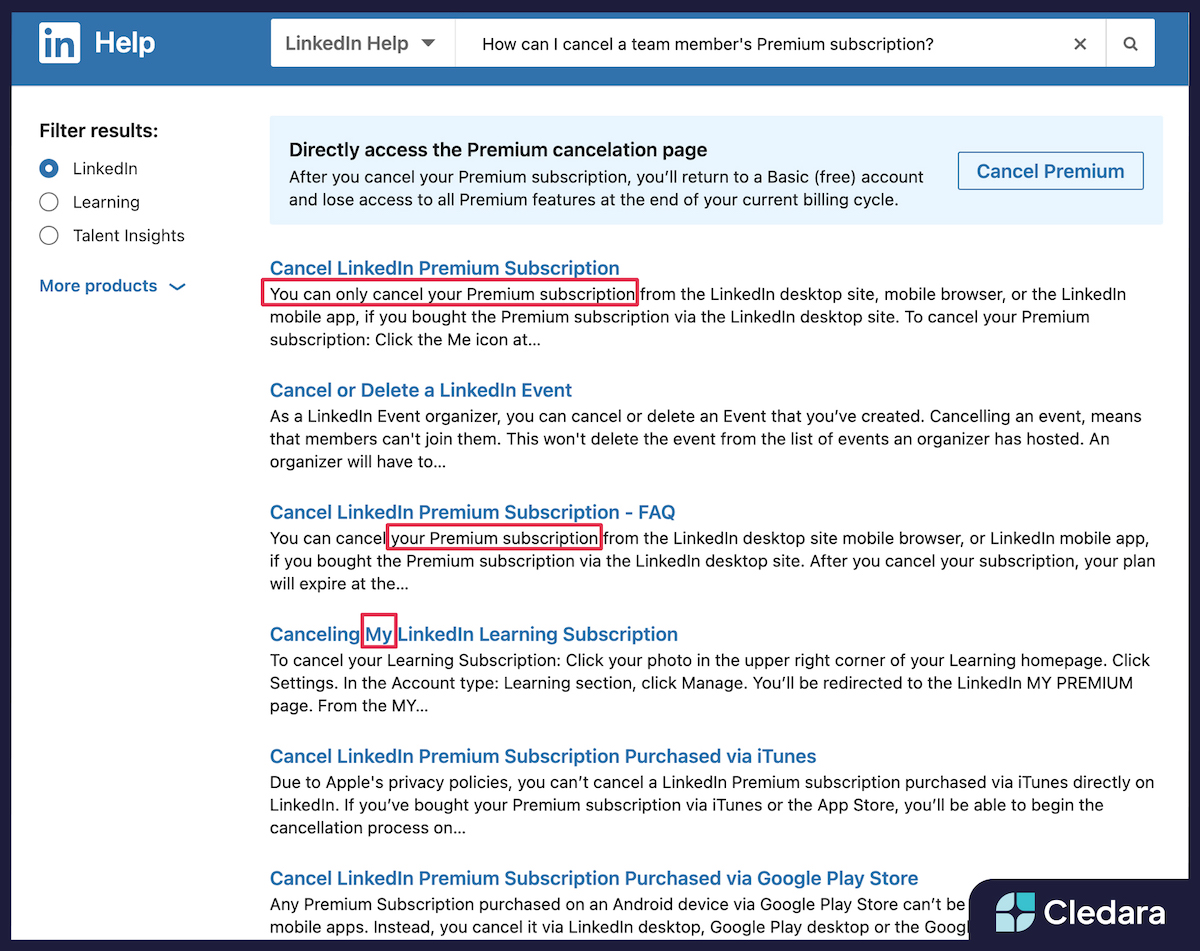
3. Go to the help center
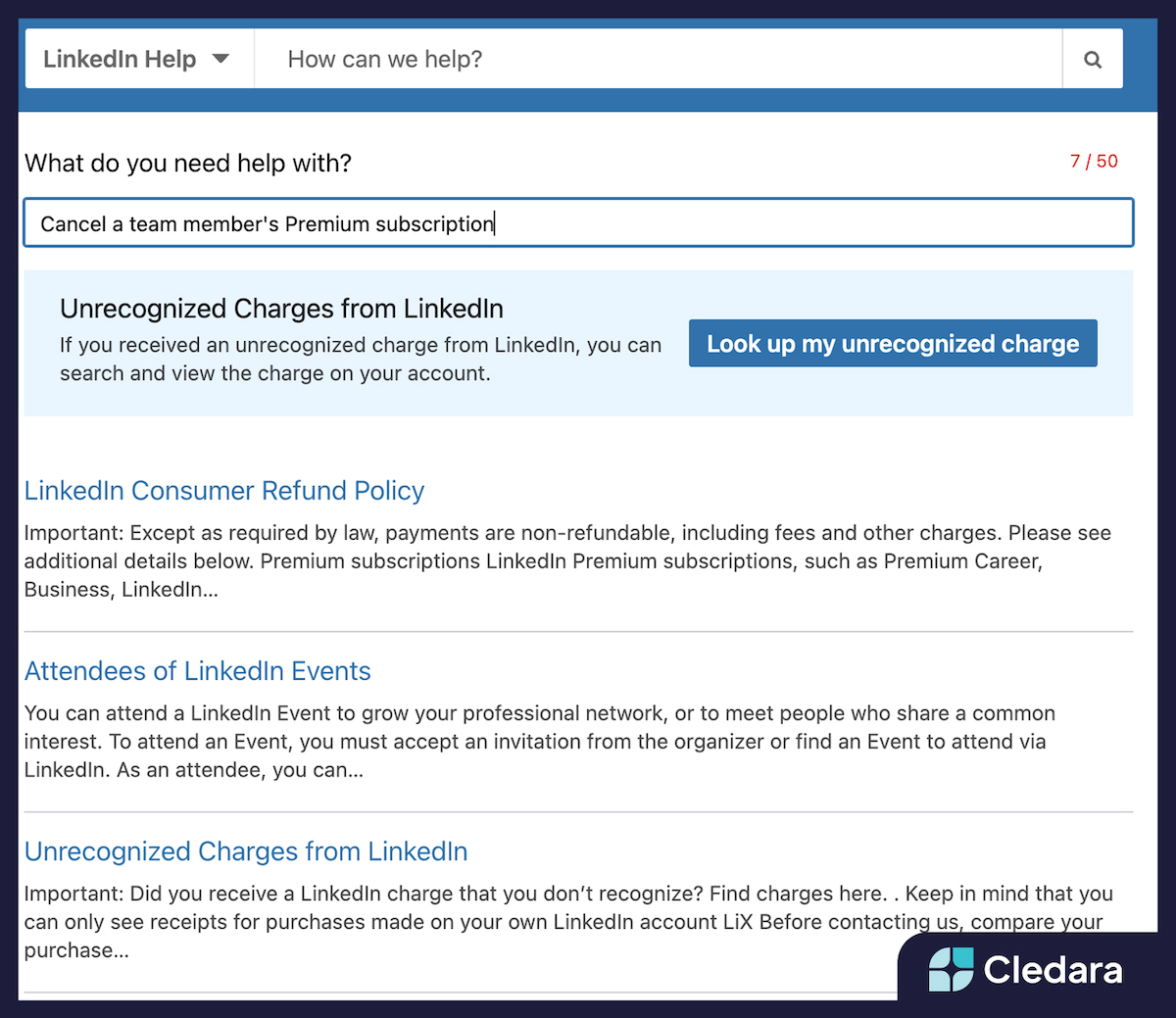
On LinkedIn Help, if you type in: “How can I cancel a team member’s premium subscription” or "How to cancel a LinkedIn account" - you’ll still only get results and instructions on how to cancel your own subscription.
4. Go to the FAQs
As going to LinkedIn shortcuts and the help center does not lead you to cancel other premium accounts, you won’t get much luck in the FAQ section either. Even if you type in: Cancel a team member’s LinkedIn premium subscription.
5. Create a ticket
After going through 3 separate resource pages on LinkedIn and still not finding the information, the final and only option at this stage is to create a ticket. Under “What do you need help with?” Indicate that you need help with canceling a team member’s premium subscription.
Under your question, state the team member’s account you intend to cancel, provide their email address or the URL to their profile, and justify the reason for cancelation, e.g. “no longer works at the company”.

6. Wait for a response
Once you have submitted your ticket, you will need to wait for a response from the LinkedIn team. The typical response time is 3-5 working days.
7. Provide all your credit card information
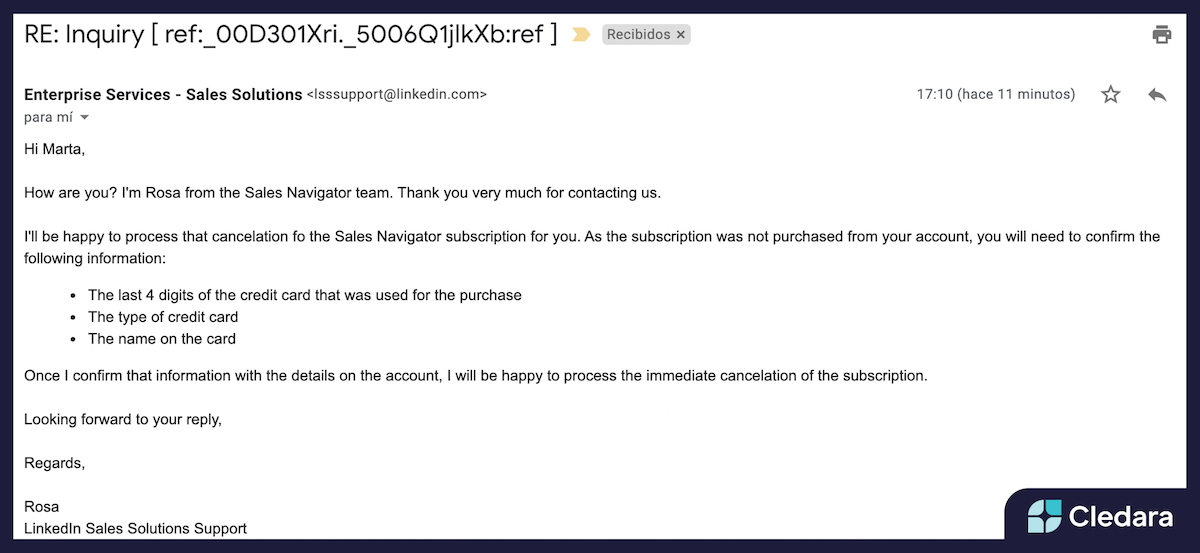
When you get a response, you will be greeted with more information and will need to provide the following details:
- Last 4 digits of the credit card used in the subscription
- Payment use method
- Name as appeared on the card
- Date, amount and currency of the charge
- Billing address on the credit card
- Number next to “LinkedIn” on the 1st or 2nd line of your Cardholder Statement
- Credit card statement showing the charge in question (for PayPal charges provide the email transaction receipt)
Be aware that incomplete information can delay the cancelation.

As you can see above, LinkedIn will ask you to provide a lot of credit card and transactional information in order to cancel someone else’s account. You'll also receive yet another email from them:
8. Final confirmation
It doesn’t end there! LinkedIn will ask you once again to confirm to make sure you really want to cancel someone else’s subscription, in which you need to state your final confirmation.
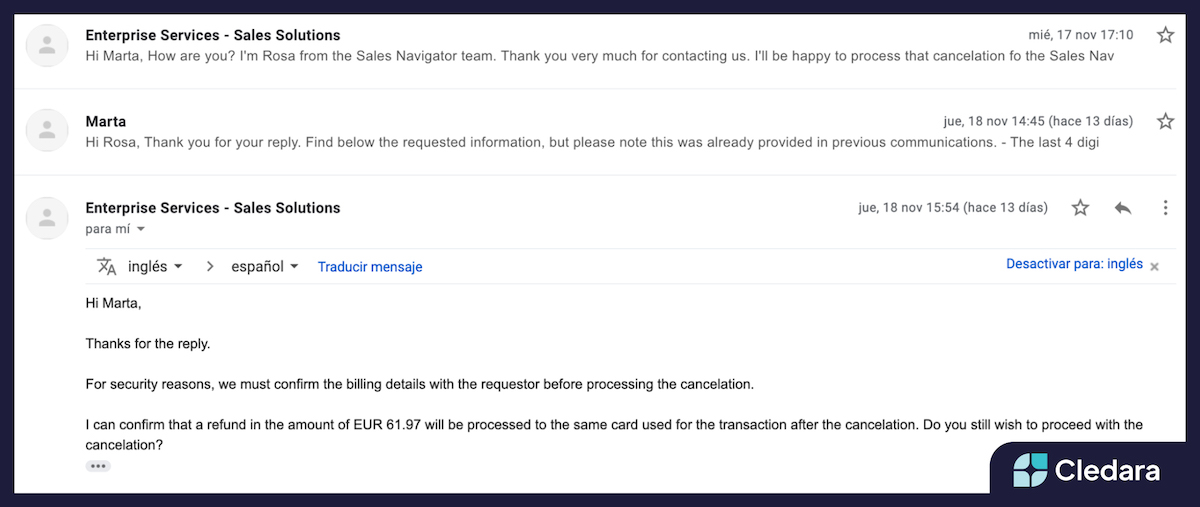
As soon as LinkedIn has verified all the information given, the person in question’s LinkedIn Premium subscription will be canceled and their account downgraded back to a regular LinkedIn account. You will receive a confirmation email from LinkedIn confirming that their account has been downgraded and will no longer be charged.
Evidently, it’s a long process involving tickets and emails going back and forth from LinkedIn, not to mention the amount of credit information needed and lack of initial guidance.
Luckily, there are much easier ways to cancel LinkedIn subscriptions with these step-by-step instructions.


More Ways to Cancel Someone Else’s LinkedIn Account**
Here are the simpler ways to cancel someone else’s account:
1. Use a Virtual Card as a Payment Method
One of the great things about virtual cards is the ability to switch them off in just one click and have payments automatically suspended:
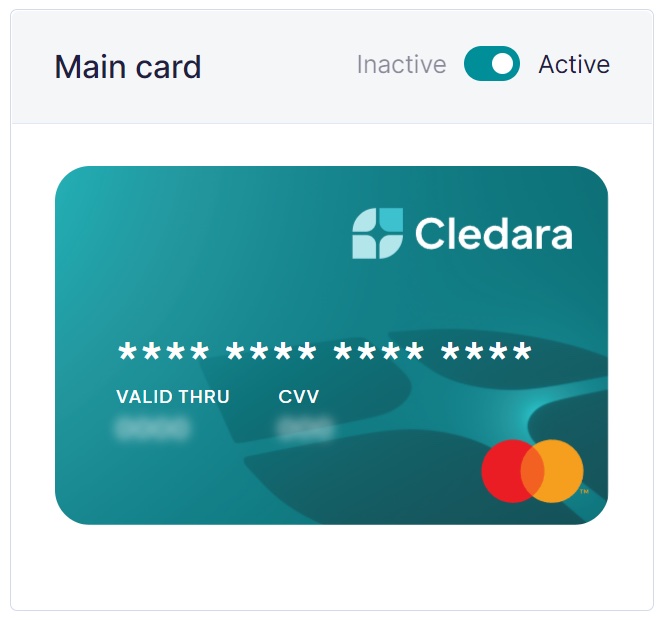
You can simply deactivate the individual card linked to the LinkedIn subscription and immediately suspend the subscription and block the payment. Your company will save both time and money by doing this.
Instead of going through the LinkedIn route yourself, you’ll just receive an email stating that the payment was declined and therefore will no longer pay.
2. Ask Employees to Cancel in Advance
If you know an employee is leaving the company shortly, be sure to ask them to cancel their subscription on their account prior to their departure. It may take some chasing from your end, but it’s better to be persistent than later have to deal with the long process of canceling the subscription yourself.
3. Assign Seats from Sales Navigator
Canceling someone else's account is pretty straightforward if you set it up through your Sales Navigator in the first place. Always add another premium subscription from your own main dashboard. Plus, you’ll have an overview of everyone’s accounts and can easily manage everything in one place.
4. Remember - Don’t Share Company Credit Card Details
As soon as someone uses the company credit card for a transaction under their personal email domain (their LinkedIn account) and not the companies, they automatically have full control of all the payments on that account, giving you zero visibility and little control.
By not sharing the company credit details in the first place (unless it’s a virtual card that you can switch off), you won’t experience any of these issues when they leave or when you need to cancel.
We hope the steps above will help you and your team cancel LinkedIn premium subscriptions easily, or know what to do in the future from now on.